Windows desktop application
Print large.
One tile at a time.
Splitter Studio turns oversized images into precisely calculated printable tiles for A3, A4 and custom paper sizes - on the printer you already own.
The problem
Your printer shouldn’t limit the size of your ideas.
Most printers stop at A4 or A3. Your artwork doesn’t have to. Posters, presentation boards, signage, photography and teaching material all deserve their real size - instead of being shrunk to fit whatever is in the tray.
Splitter Studio divides the artwork into accurately calculated tiles, so an ordinary printer can produce something extraordinary.
Without Splitter Studio
With Splitter Studio
How it works
From image to finished poster.
Eight deliberate steps between your original file and a wall-sized print.
- 01
Open your image
Drag in a poster, photograph, render or artwork. The original is never modified.
- 02
Choose your paper
A0-A5, Letter, Legal, Tabloid - or a custom size, with your printer’s margins.
- 03
Set your final size
Real-world dimensions, like 36 × 48 inches - or pick rows × columns directly.
- 04
Pick a recommended layout
Splitter Studio suggests practical grids ranked by sheet count and waste. One click applies.
- 05
Preview live
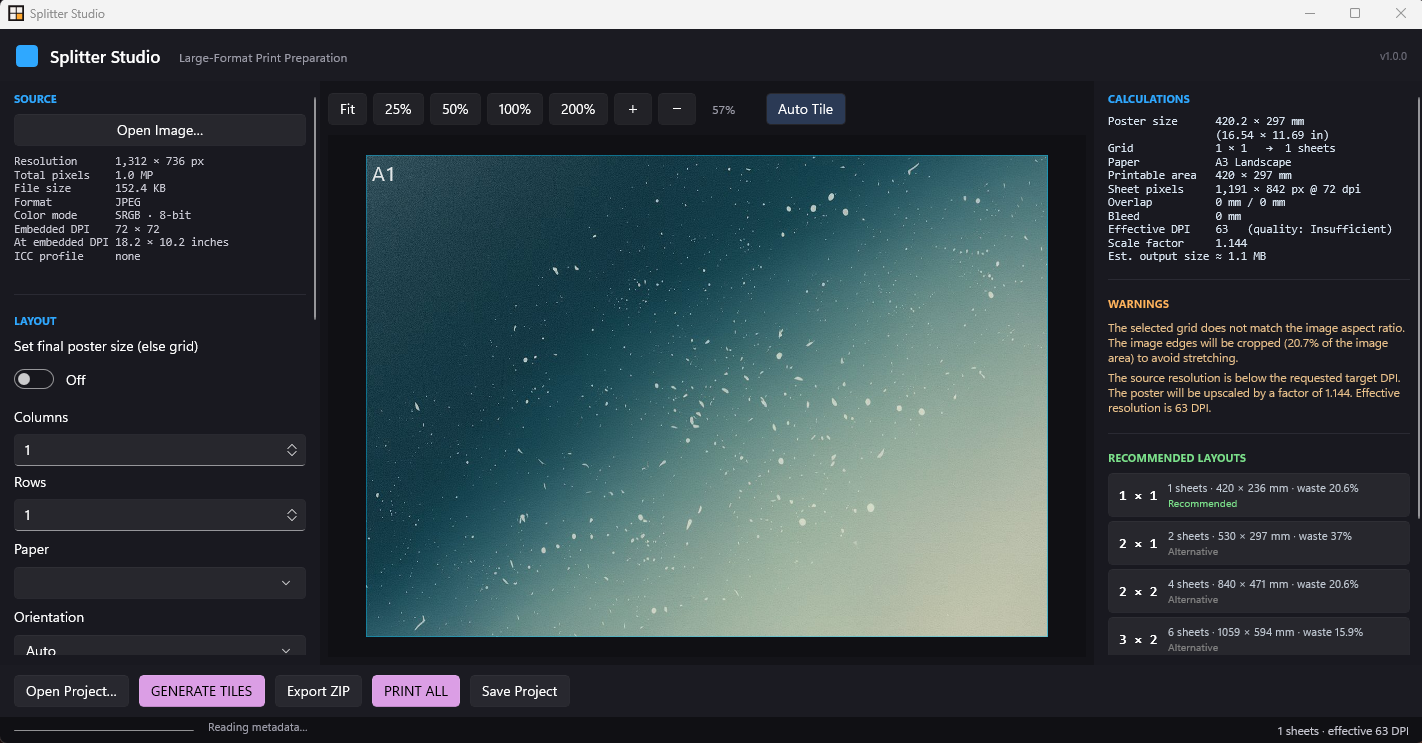
Tile grid, overlap strips, labels and marks update as you tweak every value.
- 06
Generate
Full-resolution tiles extracted directly from the original image - never the preview.
- 07
Print or export
Queue sheets at 100% scale through Windows, or export PNG/JPEG/TIFF as a ZIP.
- 08
Assemble
Tile map, contact sheet, assembly map and a print-instructions PDF guide final assembly.
Interactive demonstration
See the math work.
Set a finished poster size and a paper size - watch the tile layout, sheet count and pixel demands update. This is a website illustration; the calculations inside the Windows application go much deeper.
Try the idea
Illustrative demoSimplified estimate for illustration. The Splitter Studio application performs the real calculations against your printer’s printable area.
This layout is very large for an in-browser preview - the desktop app handles layouts like this comfortably.
Hover or focus a tile to inspect it.
Precision
Pixels are only half the story.
Large-format printing lives where pixels meet millimeters. DPI, printable area, margins, overlap and bleed decide whether a printed poster is sharp, seamless and exactly the size you asked for.
- px
- DPI
- mm
- cm
- in
- sheets
“Precision over shortcuts.”
Resolution check
- Target
- 300 DPI
- Required pixels
- 10,800 × 14,400 px
- Source image
- 7,200 × 9,600 px
Splitter Studio tells you what your output will really look like - it doesn’t silently upscale and pretend the detail is there.
Feature showcase
A print-preparation workflow, not an image splitter.
Exact physical dimensions
Millimeters, centimeters, inches, pixels and DPI are first-class units - decimal-exact, no accumulated rounding.
ExploreRecommended layouts
Enter a final size and the sheet grid is derived for you - or pick from suggested grids ranked by sheets and waste.
ExploreOriginal-resolution tiles
Final tiles are extracted directly from the original file at exact pixel regions - never from the preview.
ExplorePrint preparation
Margins, printable area, overlap, bleed, crop marks, registration marks and tile labels for clean assembly.
ExploreLive preview
Zoom, pan and hover any tile to see its exact pixel region. Overlap strips are highlighted in orange.
Explore100% actual-size printing
Tiles print at true physical size through the Windows print system. No silent scaling, ever.
ExploreQueue & honest status
Every sheet tracked with real spooler status - submitted, spooling, printing, completed or failed. Retry or skip one tile.
ExploreProjects
Save the full setup as a versioned .splitterproject file and reopen it whenever you need it.
ExploreExport anywhere
PNG / JPEG / TIFF tiles plus a ZIP with contact sheet, assembly map and print-instructions PDF.
ExploreLocal-first by design
No uploads, no account, no internet required. Your images stay on your computer.
ExploreQuality warnings
Effective DPI is calculated for every layout - you are warned before printing soft output, never after.
ExploreTruly native Windows
Built on WinUI 3 with a dark professional interface. Self-contained installer - no runtimes to install.
ExploreBuilt for Windows
A native Windows application built for serious print preparation.
No command lines. No runtimes to hunt down. Install it like any other desktop application and start preparing posters in minutes.
- Native desktop software
- Self-contained installer
- No Python required
- No Docker required
- No browser tools required
Use cases
Built for more than posters.
Architecture
Large architectural presentations, plans and renders at readable scale.
Photography
Photographic prints that go far beyond standard photo sizes.
Events
Posters, signage and event artwork produced on ordinary office paper.
Design
Presentation boards and visual artwork assembled from precise tiles.
Education
Large diagrams, charts and teaching materials for walls and classrooms.
DIY & home printing
Oversized prints made at home with the printer you already own.
Print workflow
Twenty-five sheets shouldn’t mean twenty-five jobs.
Splitter Studio keeps large print jobs organized sheet by sheet. If a page jams or runs out of ink mid-poster, you don’t start over - you retry, resume or skip exactly one tile.
Prefer to print somewhere else? Generate every tile as high-resolution files with an assembly map, export them as a ZIP, and hand them to any print shop.
More about queue & resumePrint queue
12 sheets · default printer- A1 Printed
- A2 Printed
- A3 Printing
- A4 Ready
- B1 Ready
- B2 Queued
- ···+6 more
Printing stopped at C2
Your images stay on your computer.
Splitter Studio is designed as a local-first Windows application. Image processing happens on your machine - there’s no upload step, and this website never asks for your files.
Open your image. Prepare it. Export it. Print it. Your files stay where they belong - on your computer.
System requirements
Modest by design.
If your PC can edit the image, it can tile it. Exact storage and memory needs scale with your source image and output settings.
- Operating system
- Windows 10 version 2004 or newer / Windows 11
- Architecture
- 64-bit (x64)
- Disk space
- ≈ 300 MB for the app + space for generated tiles
- Memory (RAM)
- Scales with your source image resolution
- Internet
- Not required - all processing is local
- Runtimes
- None to install - .NET and Windows App SDK ship inside the installer
FAQ
Questions, answered straight.
What is Splitter Studio?
Splitter Studio is a professional native Windows desktop application for preparing oversized images for tiled printing. It divides a large image into precisely calculated tiles so you can print a poster across multiple sheets - A0, A1, A2, A3, A4, A5, Letter, Legal, Tabloid, Ledger or custom sizes - and assemble it at full size.
Is Splitter Studio a web app?
No. Splitter Studio is a native WinUI 3 Windows application. The website you are on is only the official product website - it explains the app and provides downloads. It never processes images.
Do I need to install .NET, Python or anything else first?
No. The installer is fully self-contained - the .NET 10 runtime and Windows App SDK components ship inside it. Download, install, launch. No developer tools of any kind.
Does Splitter Studio upload my images?
No. The application is local-first: image analysis, tiling, export and printing all happen on your computer. There is no upload step, no account, and this website never asks for your files. An internet connection is not required for any core feature.
Will the tiles lose quality?
No. Every tile is extracted directly from the original image at exact pixel coordinates - never from the preview, a screenshot or a resized copy. Your original file is never modified. If your source resolution is lower than the target DPI, the app warns you instead of silently upscaling.
How do I know how many sheets I need?
You don’t have to calculate anything. Enter your final poster size and Splitter Studio derives the sheet grid - or open the Recommended Layouts panel, which lists the most practical grid options for your image and paper (fewest sheets, least waste) and lets you apply one with a click.
Your printer can print more than you think.
Turn oversized artwork into precisely calculated printable tiles with Splitter Studio.
Download Splitter Studio for Windows Explore documentation